
When a wireless CarPlay adapter not working problem shows up, the tempting move is to reset everything at once. Slow down. The fastest fix usually comes from separating the system into parts: the car's wired CarPlay, the USB port, the cable, the adapter, the iPhone settings, and the pairing history. Work through them one by one while parked, and you will know whether the issue is the adapter or the setup around it.
CarGearDirect's current catalog reviewed for this article did not list a wireless CarPlay adapter product by name, so this guide is not a product-specific support page. It is a general troubleshooting flow. For current CarGearDirect accessories, browse Products, Protection and Gadgets, and Interior Accessories.
Start With Wired CarPlay
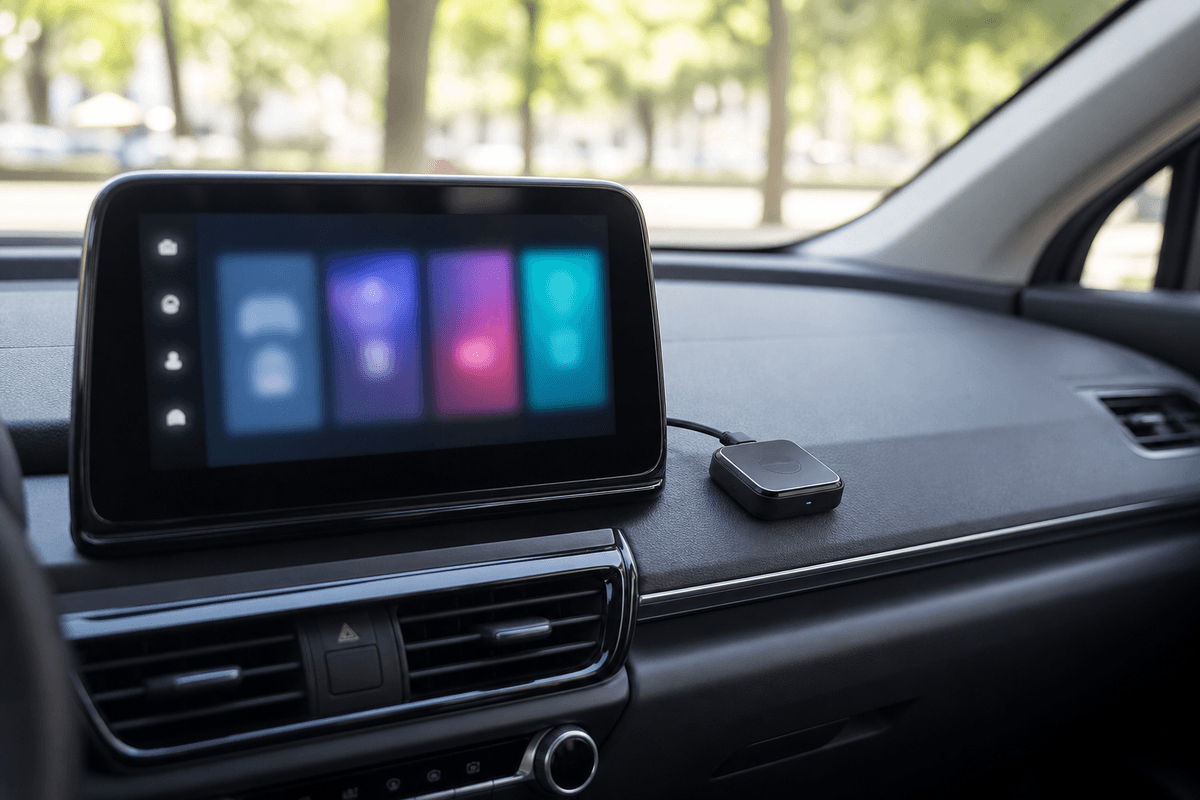
Unplug the adapter and connect the iPhone directly to the car with a known-good cable. If wired CarPlay does not start, the wireless adapter is not the first thing to blame. Check the phone, cable, USB port, vehicle settings, and CarPlay availability first. Apple Support's CarPlay page is the right baseline for iPhone-side setup.
If wired CarPlay works immediately, the car and phone foundation is probably healthy. Then you can focus on the adapter, pairing, power, or firmware.
Troubleshooting Table
| Symptom | Likely cause | Parked-car check |
|---|---|---|
| Adapter does not power on | Wrong USB port, weak cable, or low port power | Try the original CarPlay port and a short known-good cable |
| Phone will not pair | Old Bluetooth or Wi-Fi pairing conflict | Forget old adapter entries and follow the adapter setup order |
| Connects then drops | Firmware, heat, cable movement, or unstable port | Test while parked with the adapter placed where it will not be bumped |
| Slow startup | Normal wireless boot delay or multiple paired phones nearby | Test with only one known phone nearby and wait through the full boot cycle |
Reset Pairing Cleanly
Many adapter issues come from confusing the phone with old pairings. Delete the adapter from the iPhone's Bluetooth list, remove the related Wi-Fi network if the adapter instructions say to do so, and remove old CarPlay vehicle entries only if you understand what you are deleting. Then restart the phone and car before pairing again.
Follow the adapter maker's order exactly. Some adapters want you to connect Bluetooth first; others create a Wi-Fi connection after Bluetooth discovery. Jumping steps can make the connection look broken even when the hardware is fine.
Check Cable, Power, and Heat
Use the short cable supplied by the adapter maker or a high-quality cable suitable for data. Long, loose, or charge-only cables can cause intermittent power or data problems. Place the adapter where it is not crushed by a console lid and not dangling from the port.
Heat also matters. A small adapter left in direct sun or a closed hot console can behave poorly. If the problem appears after thirty minutes rather than at startup, test again with the adapter in a cooler, better-ventilated position.
Do Not Troubleshoot While Driving
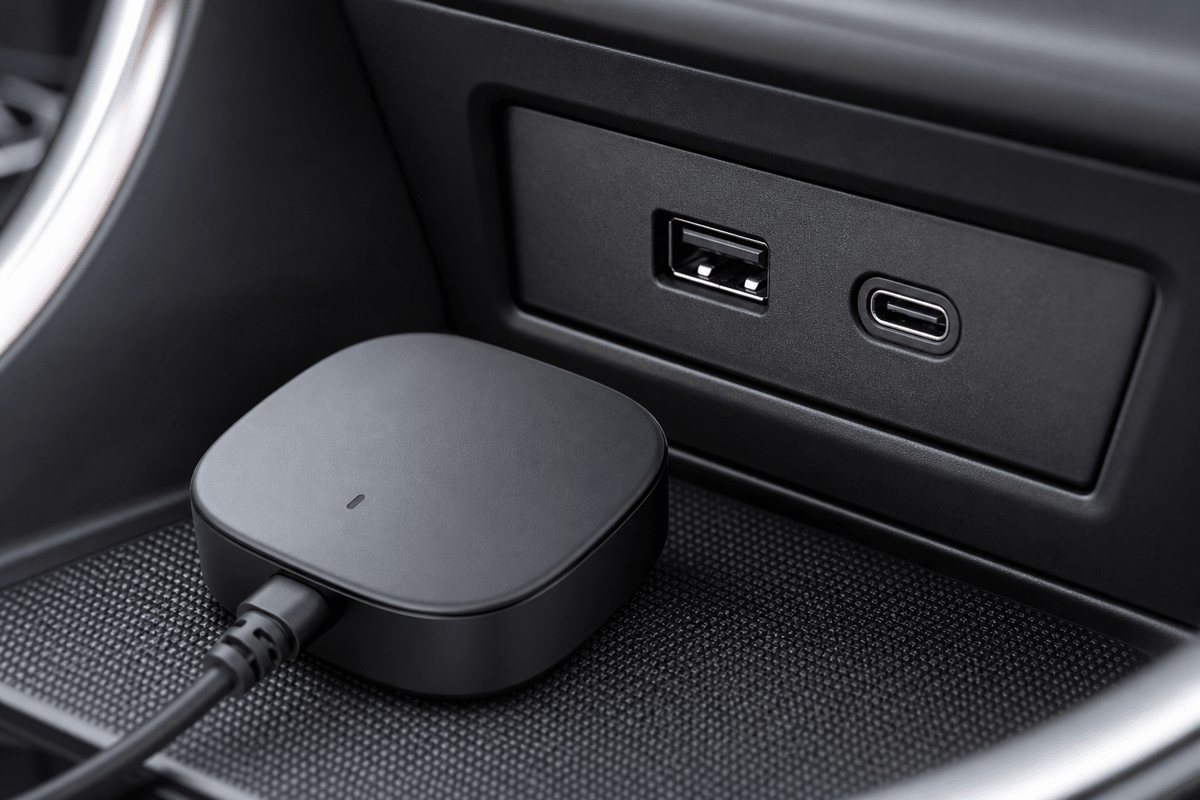
NHTSA's distracted driving guidance applies here: connection problems can easily turn into menu tapping, phone handling, and divided attention. Pull over before changing settings. If you cannot get the adapter stable before the trip, use wired CarPlay or drive without it until you can test safely.
When to Return or Replace
If wired CarPlay works, the correct USB port is used, the phone settings are clean, firmware is current, and the adapter still disconnects in a parked test, the adapter may simply be incompatible with your vehicle. Keep compatibility screenshots and seller messages. The FTC recommends checking seller and return information before online purchases.
For CarGearDirect-related shopping questions, use the contact page and shipping policy. If you are looking for other upgrades, browse Best Sellers, New Arrivals, and the earlier CarGearDirect: 9 Game-Changing Car Solutions.